TIP 1
Light the subject evenly
Use a clear photo taken in daylight or another evenly lit space.
Dim, strongly backlit, or heavily filtered images can hide outfit edges and textures.
THRIMA photo preparation guide
The photo you start with affects your result. Learn how to frame an image, make the outfit visible, and write instructions that tell the AI what to change.
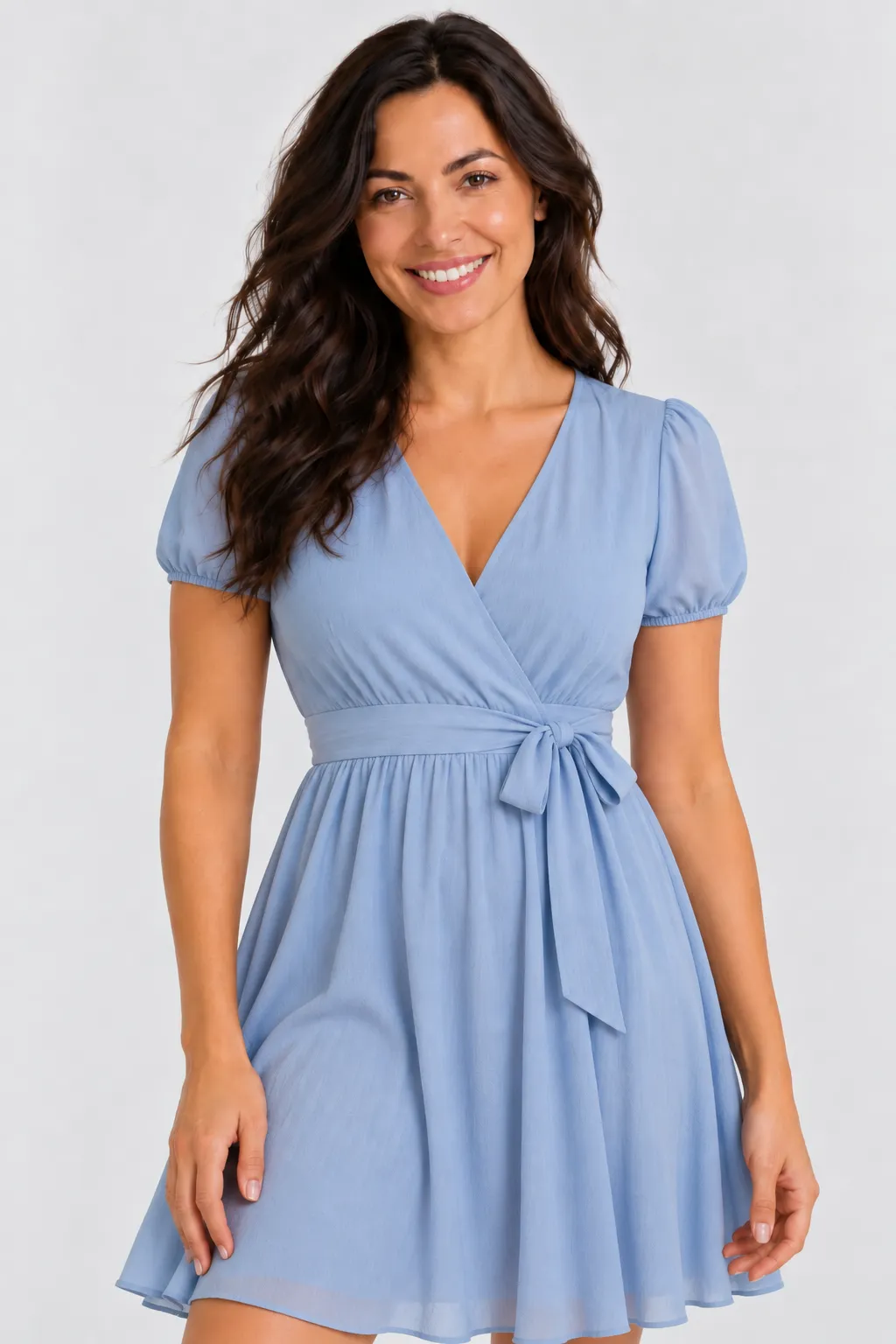
For outfit presets, THRIMA accepts JPG, PNG, and WebP images up to 4 MB. Select a photograph of an adult person that you have the right to edit.
TIP 1
Use a clear photo taken in daylight or another evenly lit space.
Dim, strongly backlit, or heavily filtered images can hide outfit edges and textures.
TIP 2
Keep the part of the body you want to edit visible, with a little space around it.
A tight crop can make sleeves, jackets, dresses, or trousers harder to generate convincingly.
TIP 3
Choose an image with one clearly visible adult subject when using outfit presets.
Multiple people and overlapping limbs can make it unclear which clothes should change.
TIP 4
Avoid heavy blur, digital filters, stickers, and obstructions over the outfit area.
AI has to infer details it cannot see. Better input usually reduces unwanted changes.
In Custom prompt mode, describe the target clothing or specific edit. Mention the colors and details that matter, then say what should stay unchanged. Short, non-conflicting instructions are often easier to interpret than a long list of requests.
“Change the outfit to a tailored navy business suit with a white shirt. Keep the person's face, pose, and background as close to the original as possible.”
“Replace the clothes with a light beige linen shirt and dark straight-leg trousers. Use natural-looking fabric folds and preserve the original lighting.”
“Keep the person and clothing unchanged. Replace only the background with a simple, softly lit studio wall.”
These are examples, not guarantees. The model may still change details unexpectedly. The dashboard includes an option to preserve the person's face, but AI results can vary.
AI virtual try-on is useful for exploring visual ideas, outfit colors, and clothing combinations. It creates an image based on your photo and instructions rather than taking real body measurements or simulating fabric physics.
A good-looking preview does not guarantee garment size, real-world fit, color accuracy, or how a specific product will look when worn. If you are shopping for clothing, check the actual retailer's size chart and product photos.
Only upload images that you own or are authorized to use, and avoid sharing private details that do not need to appear in the photo. If a result is incorrect, review the source photo and prompt before trying another generation.
Follow the THRIMA user guide for signing in, choosing an outfit preset or custom prompt, understanding credits, and downloading a generated image.
Open image generator